Intro to APIs
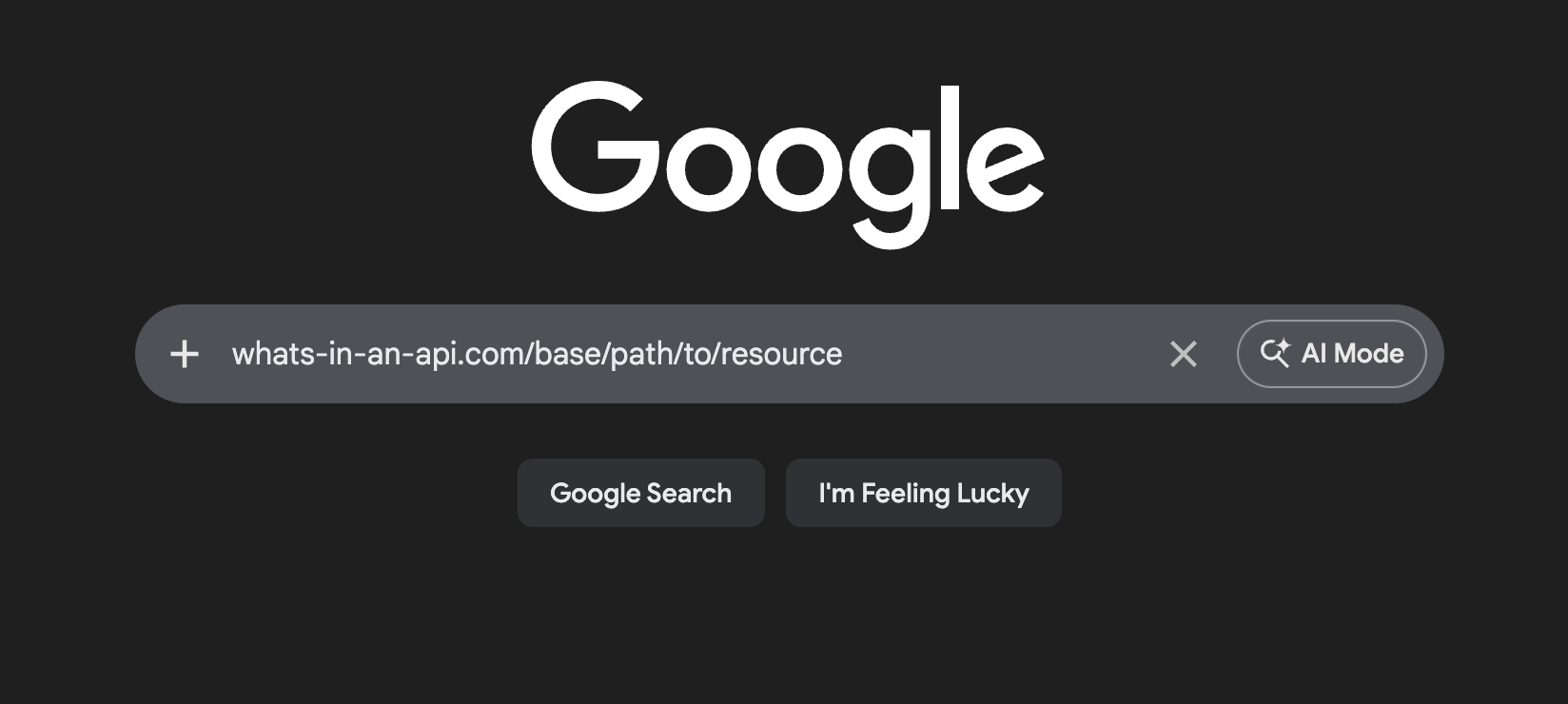
So you want to use APIs to programmatically collect data? Sounds great!
First it’s good to note that there are many types of APIs, so when we talk about “an API”, we are usually talking about a specific company’s API, such as “the Twitter API”, or “the TicketData API”.
Most web products provide an API, which is a way to expose and interact with the contents of a database in a safe and efficient way.
An API is a mechanism for accessing information. Consider a two party system: a Client requests data from a Server, which responds to the client with the requested data. An API is the tool that the Server provides to the Client in order to best request data from the Server.
Request:
Client |-------> Server

.
. (2sec.)
.

Response
Server |-------> Client
Accessing an API is based on URLs: each URL can model the data, because URLs can encode information.
ULSs can be very long and contain many nested sequences, so let’s start with how they work.
A Closer Look At HTTP
HTTP is the thing that makes APIs work in the first place. When you type in a URL, the browser actually reads it, parses it, and submits an “HTTP Request” on your behalf. HTTP Requests are essentially just structured request format that allow servers to speak the same language as the Client making the request.
Let’s look at how URLs are parsed. Here’s what the Server sees when they look at a URL:
http://what-is-an-api.com:8080/base/path/to/resource
http://- This is the protocol prefix, it is saying to use the “HTTP” protocol. The protocol determines the “format for the conversation” between Client and Server. Some other protocols arehttps://,file://,ws://, and more.what-is-an-api.com- This is the domain, which typically represents the Server’s identity. Like howfacebook.combelongs to Facebook.:8080- The port number to connect to. Web servers use a combination of “domain:port” to allow multiple different services to be run on the same domain. We’ll talk about this later on./base/path/to/endpoint- The data endpoint you are accessing. It’s a string of characters that encode the path to some resource.
Ultimately, we treat everything like a “resource”, or an “object”. For example, Users, Posts, Tickets, Seats, Credit Cards, etc. These things are all modeled as “resources”. From here, we’ll just refer to them as “objects”.
In your experience with APIs, you may stumble upon arbitrary-looking endpoints; for example, Facebook might have something like:
https://facebook.com/dwkoemfoekfj/qlwkdn2o3irh_22i314
Ignore these for now. Normally, APIs are designed to expose their data in an easy-to-read format. So instead, an API
would expose their resources in a much more structured fashion. The “Users” resource might be found at
https://facebook.com/users, or possibly with some prefix like https://facebook.com/api/v2/users with api/v2/ to
indicate that this is Version 2 of this API, or something similar.
When the Client makes the HTTP Request, the Server receives it, processes it, then returns the requested data. This could involve looking up users from a database or maybe the Server itself needs to make another external request to yet another Server to get data. This is extremely common. It’s actually how the internet is built!
The flexibility of APIs is that companies use the flexibility of HTTP to define their own domain of objects. So Facebook is modeling Users posting on Walls, but different companies model different things, like TicketData would need to model Tickets and Prices. So how could we make the data more concrete? So far, we’ve only visited the “users endpoint”. What does that do?
Sending an HTTP Request
When you visit a URL in the browser, the browser does some work for you. In this case, it’s building an HTTP GET Request object and sending it to the network; the network knows how to connect the client to the correct resource. There are a few types of requests in HTTP:
- GET Request
- POST Request
- PUT Request
- PATCH Request
- DELETE Request
- HEAD Request
- OPTIONS Request
For today, we’ll only cover GET and POST Requests. As you might guess, GET Requests are a request to get data. POST Requests are used to submit data to the server. We’ll come back to this, but for now let’s focus on just the URL.
So taking into account the implicit “GET” being made by the browser, a GET Request actually looks like this:
GET http://what-is-an-api.com:8080/base/path/to/resource
Now the server knows exactly what to do. It will use the http protocol to visit the what-is-an-api.com domain
at port 8080 and request to GET the endpoint /base/path/to/resource. This will run a query for “all instances
of the given resource” - usually referred to as “listing” the resource.
Let’s try this on a real API - mine! Ha! Copy this into your browser and see what you get:
https://p1xy94s1ni.execute-api.us-east-1.amazonaws.com/dev/events
(Notice my domain: p1xy94s1ni.execute-api.us-east-1.amazonaws.com - I haven’t configured the Domain Name Mapping yet,
so that’s why the domain is a bunch of garbled letters.)
You probably see a wall of data - try clicking the “Pretty-print” button (on Desktop only) and notice the structure. It’s using a format called JSON. JSON stands for JavaScript Object Notation. It’s probably the most standard format for data for now. The way it works is simple, but very powerful. It is defined recursively:
A JSON object is denoted with curly braces and has key-value pairs to denote its attributes.
{
  "attribute_1": 1,
  "attribute_2": "two",
  "attribute_3": 3.14,
  "attribute_4": true,
  "attribute_5": null
}
Take this JSON for example - it has 5 attributes, and their values have different types. In order, we have:
- The value associated with
attribute_1is anint(denoting integers)… - For
attribute_2, we have astring… - For
attribute_3, afloat, which is used to represent decimals - For
attribute_4, abool, short for boolean, so true or false - For
attribute_5, anullvalue, meaning an absence of any data there. Null values are often special cases when working with data objects and should be paid attention to.
These data types are typically referred to as JSON atoms. They are the simplest forms of JSON data, and the object defined above is a JSON object containing
only JSON atoms. You can think of JSON atoms as direct representation of real data fields, so for example, if we were modeling mailing addresses, the street name
would be a string, and the house number might be an int. JSON atoms are the actual values, whereas JSON “objects” are the full JSON data structure.
In the case above we have a simple JSON object that contains a “flat” set of attributes; each of its attributes’ values is a single JSON atom.
But JSON can also define lists of values, so you can have:
{
  "attribute_1": 1,
  "attribute_2": "two",
  "attribute_3": 3.14,
  "attribute_4": true,
  "attribute_5": ["other", "data", 3, 4, 5]
}
In this case the value of attribute_5 is a list containing other data atoms. And in fact, JSON can even be nested, meaning the value of an attribute can itself be a JSON object:
{
  "attribute_1": 1,
  "attribute_2": "two",
  "attribute_3": 3.14,
  "attribute_4": true,
  "attribute_5": {
      "inner_attr": "value of inner attr",
      "another_attr": 2
    }
}
There is no limit to the depth of nesting you can do, and each attribute’s value can be either:
- a JSON atom
- a JSON object
- a list of JSON atoms or objects
To make this concrete, here’s an example of a JSON object with complex structure:
{
  "order": {
      "id": 1,
      "user": {
          "name": "John Smith",
          "dob": "3/12/1991"
      },
      "items": [
          {
            "sku": "19224",
            "name": "Avocado",
            "amount": 3,
            "unit_price": 3.99
          },
          {
            "sku": "12414",
            "name": "Banana",
            "amount": 1,
            "unit_price": 0.30
          }
      ],
      "method": "delivery",
      "details": {
          "address": {
          "street": "Main Street",
          "house_number": 135,
          "apt_number": null
      },
      "delivery_instructions": "Just leave at the door - thanks!"
    }
  }
}
Copy-paste this JSON into this website to view it interactively.
This JSON defines a grocery order, showing the order’s ID, the user who ordered it, the items he ordered, and the delivery details.
You can access JSON attributes using 2 notations:
Dot Notation:
If the above JSON was saved to a variable called obj, you can access its attributes by chaining dots:
The obj.order.id will evaluate to the int 1 and obj.order.user.name will evaluate to the string John Smith.
Accessor Notation:
Some languages (ie. Python) uses the notation object["attribute"] to denote attribute access. So for the example above, the
equivalent would be obj["order"]["id"] and obj["order"]["user"]["name"].
Accessing Lists Elements
Notice how the order.items attribute is a JSON list of JSON objects. Lists are ordered data structures, and we access their
elements by using the index of the element. So to access the first element, we would do:
obj.order.items[0]
or
obj["order"]["items"][0]
JSON Lists are 0-based indexed, so for a list of size N, the first element is always obj[0] and the last is always obj[N-1].
Style Choice
Both of these mean the same thing, the difference is the style choice, which is usually determined by the language you’re using or the software that is evaluating your input.
Dot Notation:
obj.order.items[0].name

^ This evaluates to "Avocado"
Accessor Notation
obj["order"]["items"][1]["name"]

^ This evaluates to "Banana"
Okay enough JSON, back to HTTP and APIs.
Parameters of HTTP Requests
If we wanted to get a specific resource, we would need to ask for it specifically, using it’s id attribute.
The format depends on how the API creator designed: it could be a number like 12345 or some string like user_12345.
To do so, the API would expose an endpoint like this:
https://p1xy94s1ni.execute-api.us-east-1.amazonaws.com/dev/events/<event_id>
Or sometimes expressed like this:
https://p1xy94s1ni.execute-api.us-east-1.amazonaws.com/dev/events/{event_id}
In this case, <event_id> is the placeholder for the ID argument. So to get a specific resource, we could get:
GET https://p1xy94s1ni.execute-api.us-east-1.amazonaws.com/dev/events/1
Notice how the top level object in the response is now a singular JSON object rather than a list.
These parameters that form part of our “path to our resource” are called Path Parameters. Easy enough. We can have path parameters in multiple levels of our path, like this:
https://facebook.com/api/groups/12/members/3
This tells us “get group with id=12, get its members, and return the one with id=3. So the output should be a single
User object.
For the sake of brevity, and as is common, sometimes people remove the protocol + domain from the URL when discussing a single domain.
So for example, instead of always saying:
GET https://facebook.com/api/groups/12/members/3
I can just say:
GET /api/groups/12/members/3
Since we know the protocol and domain in question. To be clear, this is just a notation shorthand, and if you try to search for
just /api/groups/12/members/3, you’ll get an error. From here on, I’m going to use this shorthand to discuss making requests
against an imaginary API domain.
Path Parameters form part of the path to the resource in question. However, there is one other type of parameter that you may notice called Query Parameters. These are parameters are not part of the path, so they don’t affect which resource we’re requesting, but rather give us additional information on how to search the resource.
Remember how we said that GET /base/path/to/resource is a list operation? So for example, GET /api/groups/12/members
will list all the members in group 12, and in order to get a specific member, we access that member with their id:
GET /api/groups/12/members/3.
So for list operations, you may want to apply certain criteria, filters, or sorting, etc. It’s usually infeasable for an API
to return all of a particular resource: imagine receiving every single Twitter Tweet: GET /api/tweets.
The amount of data is huge, so instead we pass Query Parameters to limit the query. Query Parameters are separated from
the main path in the URL by a question mark ?. Query Parameters are key-value pairs, expressed with an equal sign =,
and are separated from other Query Parameters by an ampersand &. Here’s an example:
GET /api/groups/12/members?limit=8&sort_by=age&order=asc
When this gets parsed out, the browser sees this as:
/api/groups/12/membersthe path to the Members resource?- the delimiter that separates the path and the Query Parameters-
limit=8&sort_by=age&order=ascthe Query Parameters section, which can be broken down per Query Param:limit = 8sort_by = ageorder = desc
Now the server knows that we want to see only the 8 oldest Members of the Group with ID = 12.
As always, the API creator determines which Query Parameters are available for which routes, their types, and how they work. A good rule of thumb for working with APIs is to just use their documentation directly - it will show all this information.
One point of note here is that, even if we request this:
GET /api/groups/12/members?limit=1&sort_by=age&order=asc
Notice now that we’re requesting limit = 1, meaning we expect only 1 object in the response. However, the response will
still contain a list of users, but with a single User object in it, as shown above. This is sometimes a common gotcha.
Response Structure
Usually the HTTP Response will contain some sort of metadata about the response. For example, if we’re querying some list, the resulting dataset may be too large even with query parameters. Imagine requesting for all Events where the Packers are playing:
GET /api/search/upcoming_events?team=packers
A common pattern is for the HTTP Response to include some sort of “page data”, meaning how many total results it found, and may only include the data for a limited subset of those results. The metadata would then include a sort of “cursor” ID value, allowing you to “paginate” through this query to access the rest of the results. Here’s an example response format:
{
  "data": [
    ... 100 JSON objects here ...
  ],
  "total": 69420,
  "cursor_end": "114"
}
In this scenario, to get the next 100 results, you’d made the exact same request but with a Query Parameter denoting the cursor value:
GET /api/search/upcoming_events?team=packers&cursor_start=114
This example illustrates:
- IDs of objects should not be expected to be sequential: there are 100 elements, but the highest element ID is
114. - The Query Parameter for the cursor should not be expected to be the same key name as the response, ie.
cursor_endvs.cursor_start.
In turn, the next HTTP Response would include the next 100 objects, and an updated cursor value for the next batch of 100, etc.
POST Requests
It’s useful to submit data sometimes, not just to consume it. For example, if you want to use Facebook’s API to create a new Group.
To submit data, we use POST Requests. These are different from GET Requests in that they include a Request Body, in addition to their URL.
(To follow along for this section, feel free to download the Postman tool - it helps you make HTTP Requests: https://www.postman.com/downloads/)
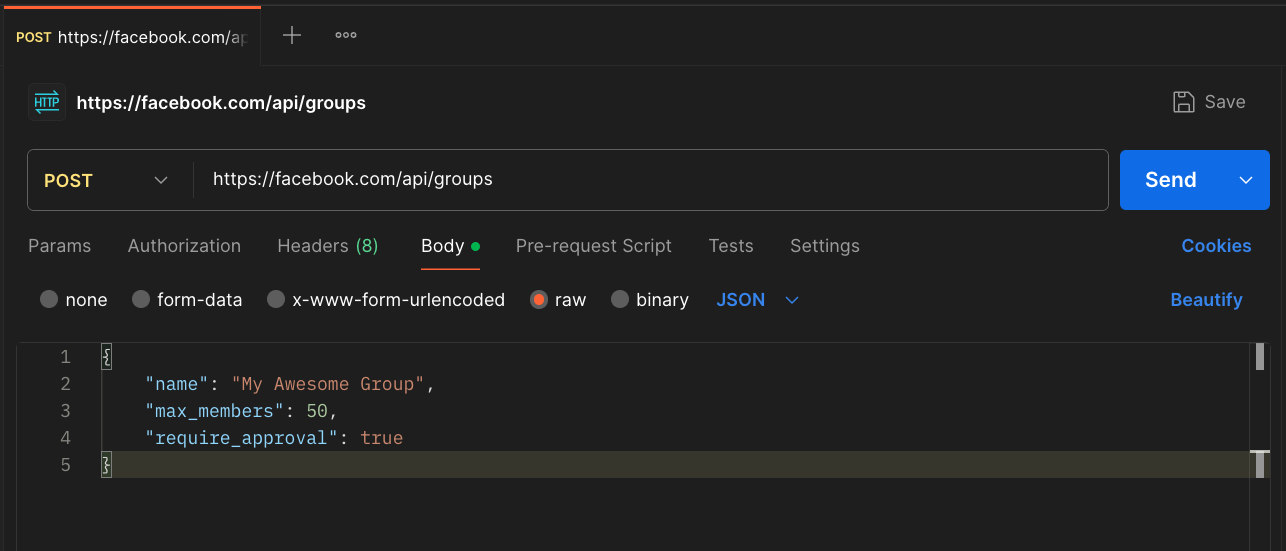
So an example POST Request would look like:
POST /api/groups

Body: {
    "name": "My Awesome Group",
    "max_members": 50,
    "require_approval": true,
}
Here’s how this would look in Postman:
- Set the Request method to
POST - Place the full protocol + domain + path in the URL
- You’ll see a list of tabs below the URL including Params (which are our Query Params!) - go to Body
- Select
raw-> change the type fromTexttoJSON - Paste the JSON object directly into the body field
If you change the Body to be invalid JSON, Postman will show you an error. For example, I removed the closing quote mark from the name value:
"name": "My Awesome
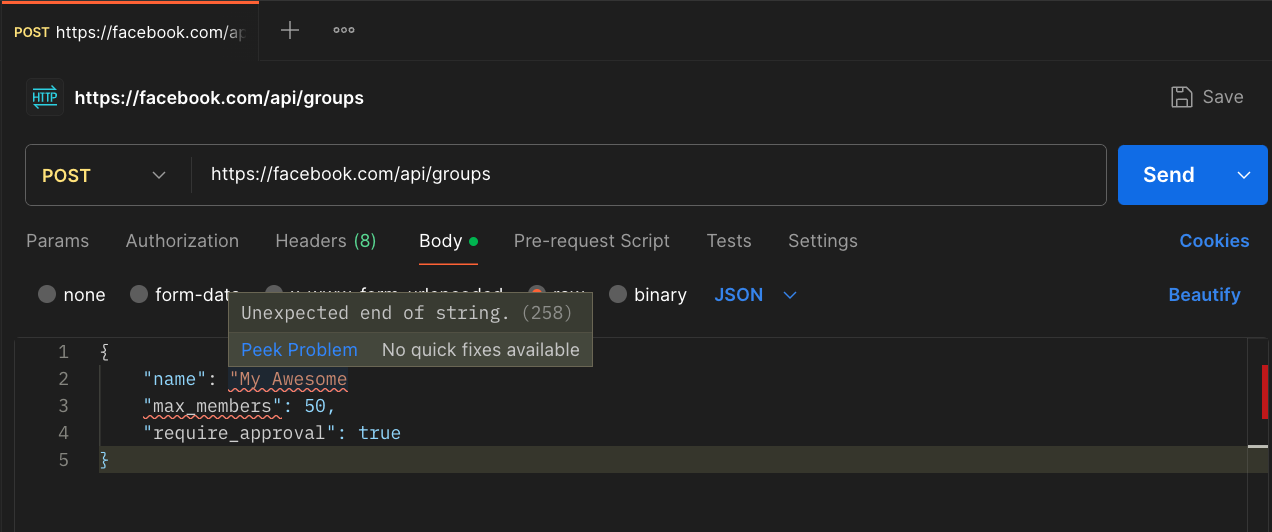
Obviously this won’t work because I made up a fake API endpoint. Facebook’s documentation shows you how to actually list and create groups.
Here’s a really fun Pokemon API you can use to practice: https://pokeapi.co/. Try to read the documentation and make requests in Postman.
Responses
The last subject we’ll cover is Responses, specifically Response Status Codes.
An HTTP Response will include a “Status Code”, which is a number that denotes the status of the operation.
If the code is 200, that means all good! You might also recognize 404, which means “Resource not found”; this could be
because I tried to access GET /api/users/99 but there is no user with ID = 99.
Here’s a general breakdown of Status Codes:
- Successful Responses (
200-299) - Redirect message (
300-399) - Client Error Response (
400-499) - Server Error Response (
500-599)
Most of the time, it falls into these specific status codes, which are worth memorizing:
200: Success400: Bad Request (meaning the requestor messed something up: a misspelled Query Parameter or something)404: Not Found (the request was correct but the requested resource doesn’t exist)429: Too Many Requests (you might see this if you spam the Send button and get rate limited)500: Server Error (this means the server broke …and you’ve discovered a potential hack! Or their developers don’t get paid enough…)
Conclusion
In this article we covered a lot: how URLs are parsed, HTTP Request types, how JSON works, how to GET and POST data to a server, and how to understand the response code. These tools will give you the basis for how to write a program that programmatically constructs requests and parses the results.
There are tons of other articles and documents to go from here, just look around. But now you know the basics. One good resource I’d recommend if you want to go very deep is the Mozilla Developer Network: https://developer.mozilla.org/en-US/docs/Web/HTTP/Guides/Session.
Happy data-ing!